
Inbound Blog
The Bluleadz Blog
Applying HubSpot education to every aspect of your organization.
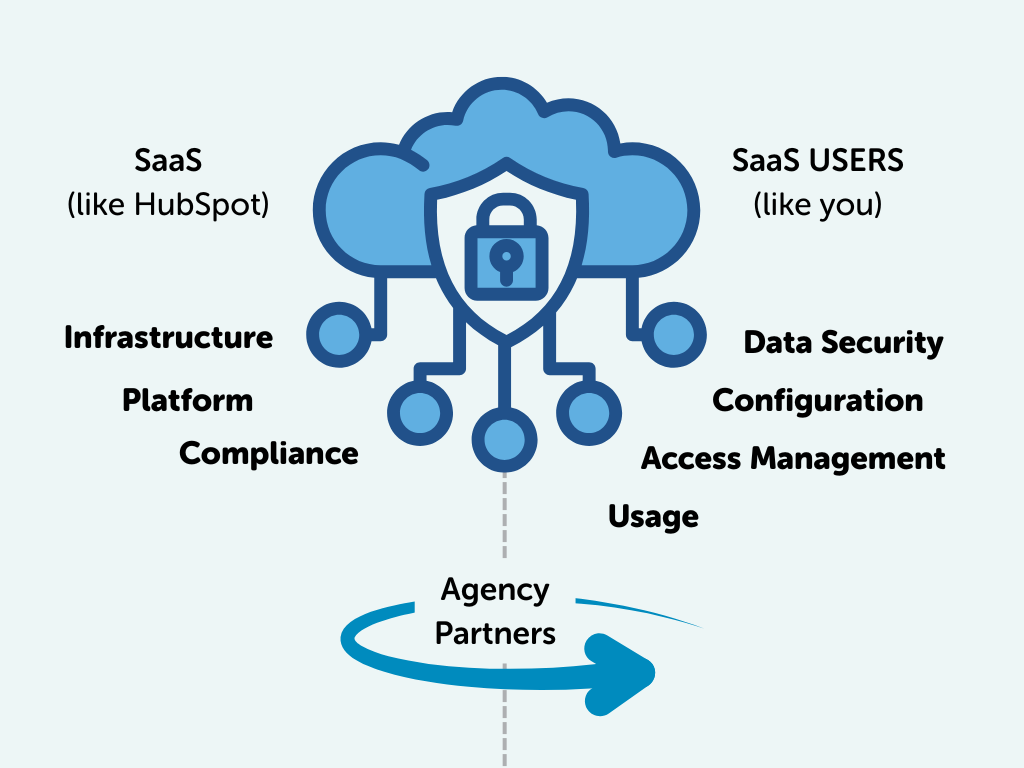
Securing the HubSpot Agentic Era: An Elite Partner’s Role
In the HubSpot ecosystem, growth is a shared journey. As our clients scale, the complexity of the data they manage scales with them. As HubSpot makes exciting moves into the enterprise space—expanding regional data ...
.png)
Mindbody & HubSpot Data Sync: What Syncs Natively vs. Custom Code
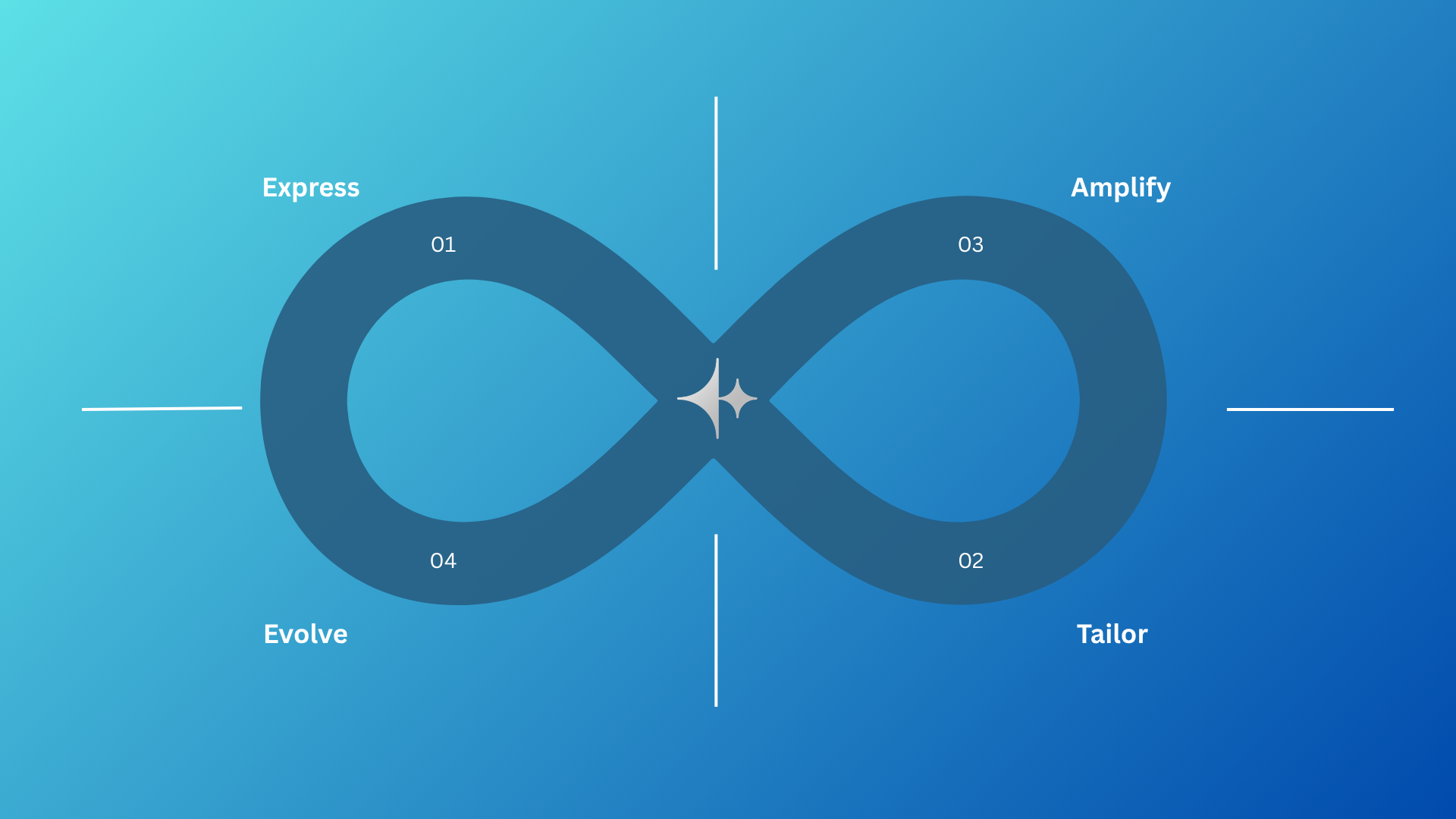
HubSpot’s Loop Marketing: The Funnel Isn’t Broken (It’s Evolving)
Remember when inbound marketing felt like magic? Publish great content, attract the right traffic, nurture with value, and “boom” qualified leads. Those were simpler times. But in today’s AI-driven world, buyer behavior ...

How Data Hub + AI Can Give Your RevOps A Power Up
Transform your CRM strategy with AI-driven automation for cleaner, richer customer data and smarter business decisions. If your team is still debating whose spreadsheet is “more accurate,” you don’t have a sales ...

A Step-by-Step Guide to Prep Your Data for a Successful HubSpot Import
If you’re a mid-market SaaS sales leader staring down a HubSpot migration, you’re not “doing a little housekeeping.” You’re performing open-heart surgery on your revenue engine while the patient (your pipeline) keeps ...
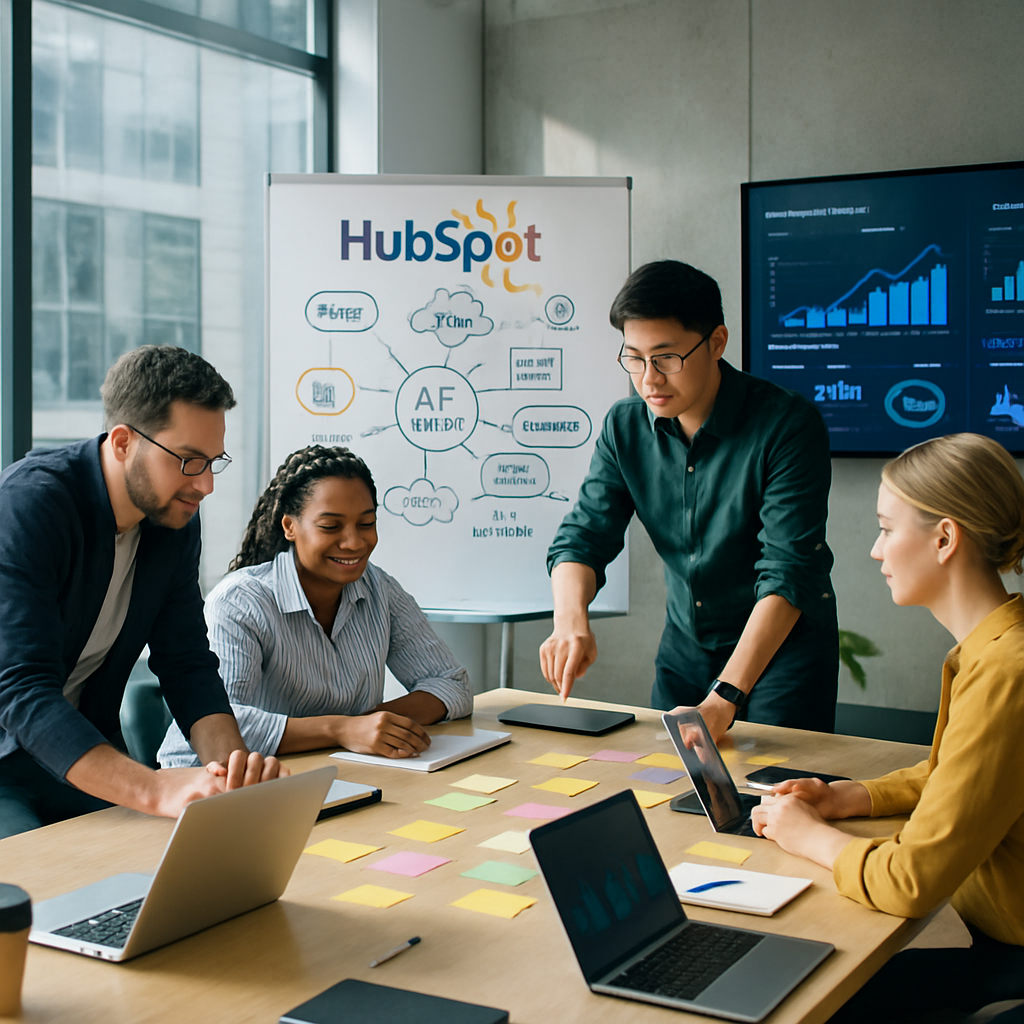
How HubSpot's New AI Tools Are Transforming Mid-Market SaaS Sales
The SaaS Sales Shift: From Fragmented to Unified The life of a mid-market SaaS sales leader has always been a balancing act. You're asked to scale revenue, increase efficiency, and gain a clear view of your data, but ...

HubSpot Acquires Cacheflow to Add Native CPQ Power to Commerce Hub
HubSpot continues to enhance its platform with the recent acquisition of Cacheflow. This is part and parcel to HubSpot's overarching goal of "Solving for the customer." But, what does this mean for HubSpot's users ...

The WordPress Crisis Explained (+ Why Switch to HubSpot's Content Hub)
If you rely on WordPress for your website hosting and management, you may want to sit up for this. In a surprising and potentially threatening move for millions of users, WordPress.org has officially banned WP Engine ...

The Power of Lifecycle Marketing on HubSpot: A Strategic Overview
Are you delivering value to your prospects at every stage of the buyer's journey? Engaging in lifecycle marketing that provides customers with what they need at every step of the way from being strangers to your brand ...

Beginner's Guide to Marketing: How to Do Market Research
Alright, so you're a new marketer in your company and you want to start generating jaw-dropping results. Or, maybe you're the owner of a relatively new business. Regardless, the same question remains -- where do you ...

6 Tips For Making Effective B2B Content Marketing Campaigns
A lot of people seem to think that marketing is only important for companies that sell products and services to consumers (B2C companies). However, businesses that sell products and services to other businesses (B2B ...

Setting the Right URL: A HubSpot Canonical Tag Guide
Okay, so we all know that duplicate content is bad for your search engine optimization (SEO), right? If you didn't know that already, Google has no-doubt been boxing your website like a heavy bag in search rankings, so ...

8 Ways to Build Superb Brand Recognition and Drive Sales
Ensuring that consumers can easily recognize your business keeps you a step ahead of your competition.

Decoding AI SEO: Revolutionizing Search
Artificial Intelligence (AI) is taking over the content creation process. But, AI is useful for more than just creating content—it's now being used for search engine optimization (SEO)! Yep, it's time to talk about AI ...
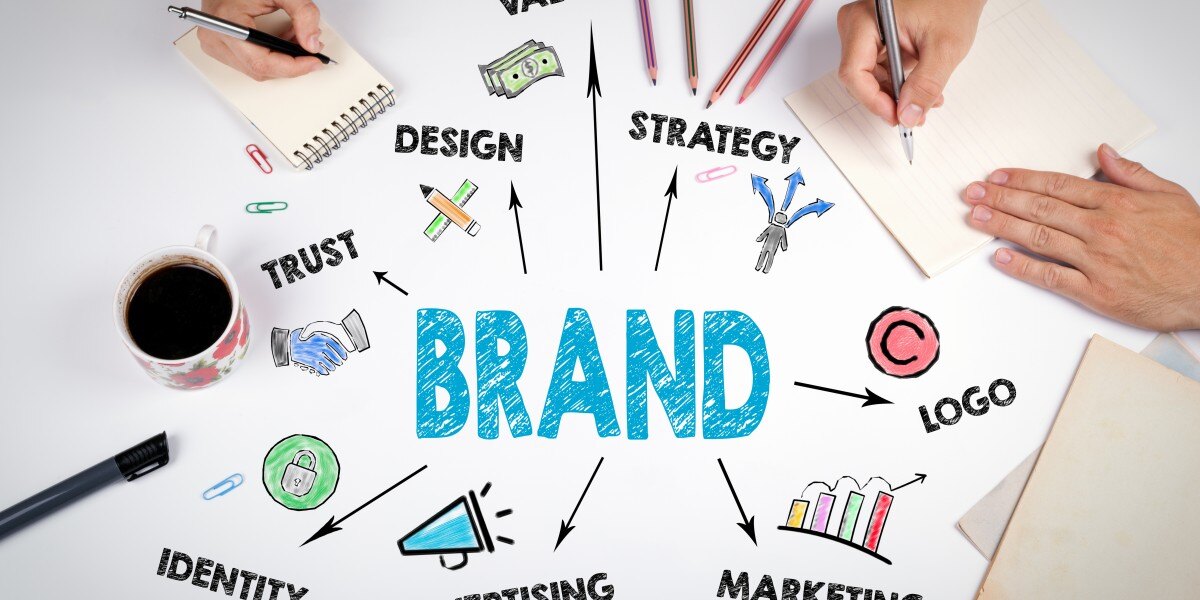
Best Tools In HubSpot For Building And Maintaining Brand Image
Underrated questions incoming: How do consumers perceive your products and services? What do they think of when they think of your brand? The answers to both define your brand image. Building a strong positive brand ...

Backlinking Basics: Benefits, Risks, and Best Practices
Backlinks back, all right! Sorry if you now have Backstreet Boys stuck in your head. But, let's link that thought to the topic of today's blog: Backlinking. Backlinks can be a crucial part of your website SEO strategy, ...

What Is a Subdomain? (+ Basics for Business Leaders)
All right, you have a shiny new website domain you just purchased from GoDaddy or an alternative domain name listing service. Now, you need to structure your new website so it's easy for you to manage and for your ...

Top 6 Marketing Insights From HubSpot's State of Service Report 2024
When it comes to excellent marketing tactics, customer experience (CX) ranks pretty high on the list of considerations. HubSpot’s State of Service Report 2024 aims to improve understanding of how CX impacts retention.